
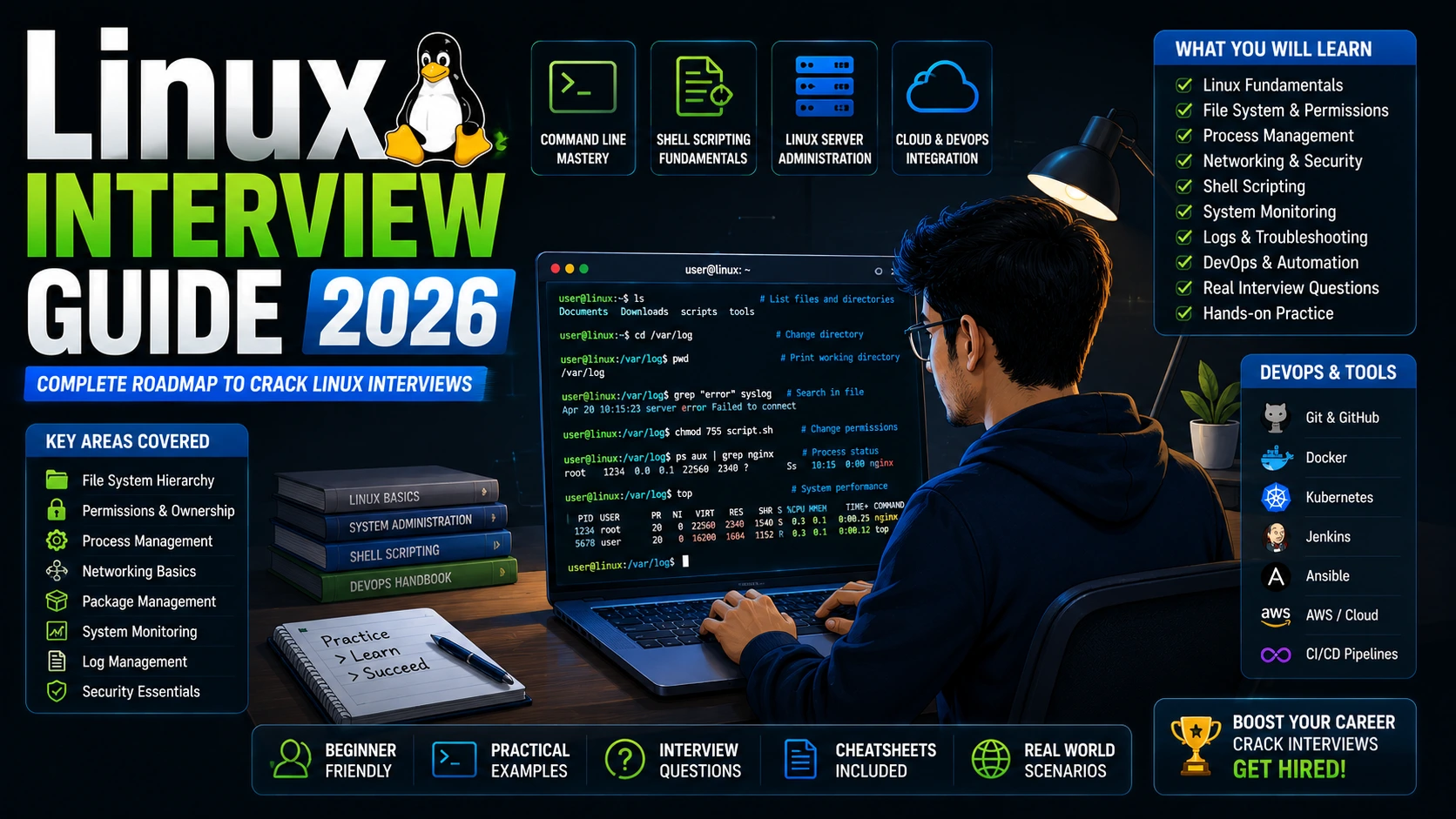
Top Linux Commands and Interview Questions for Beginners
Linux is one of the most widely used operating systems in the world. It powers servers, cloud platforms, DevOps environments, cybersecurity systems, supercomputers, and enterprise applications. Understanding Linux commands and concepts is essential for Software Engineers, System Administrators, DevOps Engineers, Cloud Engineers, Support Engineers, and Fresh Graduates preparing for technical interviews.
What is Linux?
Linux is an open-source, Unix-like operating system developed by Linus Torvalds in 1991. It is known for its stability, security, flexibility, and performance. Linux is available in various distributions such as Ubuntu, Red Hat Enterprise Linux (RHEL), CentOS, Debian, Fedora, Rocky Linux, and Kali Linux.
Companies using Linux: Amazon, Google, Microsoft Azure, IBM, Oracle, Netflix, Meta, Red Hat, and thousands of enterprise organizations.
Top 100 Python Interview Questions and Answers for Freshers
Most Important Linux Commands for Beginners
1. What is the pwd Command in Linux?
Answer:
The pwd (Print Working Directory) command displays the current directory path where the user is working. It helps users identify their location within the Linux file system hierarchy. This command is especially useful when navigating through multiple directories because it shows the absolute path. System administrators and developers frequently use pwd while managing files, scripts, and projects. It is one of the simplest yet most important Linux commands.
Example:
pwd
Output:
/home/ubuntu/projects
2. What is the ls Command?
Answer:
The ls (List) command displays files and directories present in a location. It helps users view directory contents and gather information about files. Different options allow users to see hidden files, permissions, ownership details, and file sizes. This command is one of the most frequently used Linux commands because file navigation is a daily task for administrators and developers. Understanding ls options is essential for efficient Linux usage.
Examples:
ls
ls -l
ls -a
ls -lh
Explanation:
- ls → Basic listing
- ls -l → Detailed information
- ls -a → Shows hidden files
- ls -lh → Human-readable file sizes
3. What is the cd Command?
Answer:
The cd (Change Directory) command is used to move between directories in the Linux file system. It allows users to navigate quickly to different locations. This command is essential for accessing project folders, configuration directories, and system files. Efficient use of cd improves productivity and reduces navigation time. Every Linux user must understand how to move between directories effectively.
Examples:
cd Documents cd /home/user/projects cd .. cd ~
Explanation:
- cd .. → Move to parent directory
- cd ~ → Move to home directory
- cd directory_name → Enter a directory
4. What is the mkdir Command?
Answer:
The mkdir (Make Directory) command creates new directories. It helps organize files into logical structures for projects, applications, backups, and logs. Linux administrators often use mkdir while setting up environments or deploying applications. Creating well-structured directory hierarchies improves maintainability and accessibility. Multiple directories can also be created simultaneously using a single command.
Examples:
mkdir project mkdir test_folder
Create Multiple Directories:
mkdir dev test prod
5. What is the rm Command?
Answer:
The rm (Remove) command deletes files and directories from the system. It is commonly used for cleanup, maintenance, and removing unnecessary files. Since deleted files are difficult to recover, users should exercise caution when using rm. The recursive option allows entire directories to be deleted. Understanding rm is critical because accidental deletion can result in data loss.
Examples:
rm file.txt rm -r project rm -rf test_folder
Important:
The command rm -rf removes files recursively without confirmation and should be used carefully.
6. What is the cp Command?
Answer:
The cp (Copy) command copies files and directories from one location to another. It is frequently used for backups, configuration duplication, and file management. Unlike the mv command, cp creates a duplicate while keeping the original file intact. Copying files safely is an essential skill for administrators and developers working with critical data.
Examples:
cp file1.txt file2.txt cp -r source_folder backup_folder
7. What is the mv Command?
Answer:
The mv (Move) command is used to move files and directories from one location to another. It can also rename files and folders. Unlike cp, the mv command does not create a duplicate; it transfers the file. This command is commonly used for organizing projects, restructuring directories, and renaming resources efficiently.
Examples:
mv oldfile.txt newfile.txt mv file.txt /home/user/Documents
8. What is the cat Command?
Answer:
The cat (Concatenate) command displays file contents directly in the terminal. It is widely used for viewing configuration files, logs, scripts, and documentation. Cat can also combine multiple files into a single output stream. This command is especially useful when quickly reviewing text files without opening an editor.
Example:
cat file.txt
Combine Files:
cat file1.txt file2.txt
9. What is the touch Command?
Answer:
The touch command creates empty files or updates file timestamps. Developers often use it to create source code files, configuration files, and shell scripts quickly. It is a lightweight and efficient command for file initialization. Touch is commonly used during project setup and scripting activities.
Example:
touch app.py touch config.txt
10. What is the find Command?
Answer:
The find command searches for files and directories based on criteria such as name, size, type, permissions, or modification date. It is one of the most powerful Linux commands available. System administrators rely on find to locate files quickly in large systems. It supports advanced filtering and automation capabilities.
Example:
find . -name “*.txt”
This command searches for all text files in the current directory and its subdirectories.
Communication Skills for Placement Interviews: Recruiter Tips to Get Hired Faster
Linux Interview Questions for Freshers
11. What are the Main Components of Linux?
Answer:
Linux consists of several key components that work together to provide operating system functionality. The main components include the Kernel, Shell, File System, System Libraries, and Utilities. The kernel manages hardware resources and process execution. The shell acts as the user interface for command execution. Together, these components enable Linux to operate efficiently across servers, desktops, and embedded systems.
Main Components:
- Kernel
- Shell
- File System
- System Libraries
- Utilities and Applications
12. What is the Linux Kernel?
Answer:
The Linux Kernel is the core component of the operating system responsible for managing hardware and software interactions. It handles memory management, process scheduling, device communication, file systems, and security. Applications communicate with hardware through the kernel. Because Linux is open source, developers continuously improve the kernel to enhance performance and security.
Example:
When a user saves a file, the kernel manages the interaction between the application and the storage device.
13. What is a Shell in Linux?
Answer:
A shell is a command-line interpreter that allows users to interact with the operating system. It accepts commands from users, interprets them, and executes corresponding operations. Popular Linux shells include Bash, Zsh, Korn Shell, and C Shell. Shells also support scripting, which enables task automation and system administration activities.
Example:
echo “Hello Linux”
The shell interprets and executes this command.
14. What is the Difference Between Linux and Unix?
Answer:
Linux is an open-source operating system inspired by Unix principles, whereas Unix is a family of proprietary operating systems. Linux is freely available and highly customizable, while many Unix systems require commercial licenses. Both operating systems share similar command structures and design philosophies. Linux has gained widespread adoption because of its flexibility and strong community support.
| Linux | Unix |
|---|---|
| Open Source | Mostly Proprietary |
| Free | Paid Licenses |
| Community Support | Vendor Support |
| Multiple Distributions | Limited Variants |
15. What are File Permissions in Linux?
Answer:
Linux uses file permissions to control access to files and directories. Permissions are divided into Read (r), Write (w), and Execute (x). These permissions are assigned separately for the Owner, Group, and Others. Proper permission management improves security by preventing unauthorized access or modifications. Understanding file permissions is essential for system administration and security.
Example:
-rwxr-xr–
This represents different permission levels for the owner, group, and other users.
Top OOP Interview Questions and Answers for Freshers
16. What Does chmod 755 Mean?
Answer:
The chmod command changes file permissions. The permission value 755 grants full permissions (read, write, execute) to the owner and read-execute permissions to the group and others. This permission setting is commonly used for executable scripts and web application files. Understanding numeric permission notation is a common Linux interview topic.
Example:
chmod 755 script.sh
| User Type | Permission |
|---|---|
| Owner | 7 (rwx) |
| Group | 5 (r-x) |
| Others | 5 (r-x) |
The owner can read, write, and execute the file, while others can only read and execute it.
Linux Commands and Interview Questions for Beginners – Part 2
This section covers some of the most frequently used Linux commands for process management, file searching, text processing, system monitoring, and troubleshooting. These commands are commonly asked in Linux, System Administrator, DevOps, Cloud Support, Associate System Engineer, and Technical Support interviews.
17. What is the grep Command in Linux?
Answer:
The grep (Global Regular Expression Print) command is used to search for specific patterns or text within files. It is one of the most powerful Linux commands for log analysis, troubleshooting, and text searching. System administrators use grep extensively to find errors, configuration settings, and user activity. It supports regular expressions, making complex searches possible. Understanding grep is essential for Linux troubleshooting.
Example:
grep "error" application.log
This command searches for the word “error” inside the application.log file.
18. What is the Difference Between grep and egrep?
Answer:
Both grep and egrep are used for searching patterns in files. The main difference is that egrep supports extended regular expressions without requiring escape characters. This makes complex pattern matching easier. Modern Linux systems often use grep -E instead of egrep because egrep is considered deprecated. Knowing regular expressions is useful for automation and scripting tasks.
Example:
grep -E "error|warning" logfile.txt
This command searches for either “error” or “warning”.
19. What is the awk Command?
Answer:
The awk command is a powerful text-processing tool used to manipulate and analyze structured data. It processes files line by line and allows users to extract columns, perform calculations, and generate reports. Awk is widely used in shell scripting, log analysis, and system administration. It is especially useful when working with CSV files or command outputs.
Example:
awk '{print $1}' employees.txt
This command prints the first column of the file.
20. What is the sed Command?
Answer:
The sed (Stream Editor) command is used for searching, replacing, inserting, and deleting text within files. It processes text without opening the file in an editor. Sed is commonly used for configuration updates, automation scripts, and bulk text modifications. It saves time when working with large files.
Example:
sed 's/Linux/Ubuntu/g' file.txt
This replaces all occurrences of “Linux” with “Ubuntu”.
21. What is the ps Command?
Answer:
The ps (Process Status) command displays information about running processes. It helps administrators monitor applications, identify resource-consuming programs, and troubleshoot issues. The command provides details such as Process ID (PID), CPU usage, memory usage, and execution status. Understanding process management is a common interview topic.
Example:
ps -ef
This displays all running processes in detailed format.
22. What is the top Command?
Answer:
The top command provides a real-time view of system processes and resource usage. It displays CPU utilization, memory consumption, running processes, and system load. Administrators use top to identify performance bottlenecks and troubleshoot server issues. It continuously updates the display until the user exits.
Example:
top
This opens a live system monitoring dashboard.
23. What is the kill Command?
Answer:
The kill command terminates processes using their Process ID (PID). It is used when applications become unresponsive or consume excessive resources. Linux supports different signals, such as SIGTERM and SIGKILL, to control process termination behavior. Administrators frequently use kill during troubleshooting and maintenance.
Example:
kill 1234
This sends a termination signal to process 1234.
24. What is the Difference Between kill and kill -9?
Answer:
The standard kill command sends a SIGTERM signal, allowing the process to terminate gracefully and release resources properly. The kill -9 command sends a SIGKILL signal, forcing immediate termination. SIGKILL should only be used when a process refuses to stop normally because it may cause data loss or corruption.
Example:
kill -9 1234
This forcefully terminates process 1234.
25. What is the df Command?
Answer:
The df (Disk Free) command displays disk space usage information for mounted file systems. It helps administrators monitor storage availability and prevent disk-related issues. The command shows total space, used space, available space, and usage percentage. Regular monitoring helps avoid application failures caused by insufficient storage.
Example:
df -h
The -h option displays sizes in a human-readable format.
26. What is the du Command?
Answer:
The du (Disk Usage) command shows the amount of disk space used by files and directories. Unlike df, which displays filesystem usage, du helps identify which directories consume storage. It is commonly used during storage optimization and troubleshooting.
Example:
du -sh /home/user
This displays the total size of the user’s home directory.
27. What is the tar Command?
Answer:
The tar (Tape Archive) command is used to create and extract archive files. It combines multiple files into a single archive for backup and transfer purposes. Tar is widely used in Linux environments for software distribution and backup management. Compression can be added using gzip or bzip2.
Example:
tar -cvf backup.tar folder/
This creates an archive named backup.tar.
28. How Do You Extract a tar File?
Answer:
Tar archives can be extracted using the -x option. Extraction restores files and directories from the archive to the filesystem. This operation is frequently used during software installation and backup restoration. Understanding archive management is an important Linux skill.
Example:
tar -xvf backup.tar
This extracts the contents of backup.tar.
29. What is the zip Command?
Answer:
The zip command compresses files and directories into ZIP archives. ZIP files reduce storage requirements and simplify file sharing. The format is widely supported across operating systems including Linux, Windows, and macOS. Compression improves transfer efficiency and backup management.
Example:
zip project.zip project/*
This creates a ZIP archive of the project directory.
30. What is the unzip Command?
Answer:
The unzip command extracts files from ZIP archives. It restores compressed files to their original form. Linux administrators often use unzip when installing software packages or retrieving archived data. The command supports extracting specific files as well as entire archives.
Example:
unzip project.zip
This extracts all files from the ZIP archive.
31. What is a Process in Linux?
Answer:
A process is a running instance of a program. Every command or application executed in Linux creates one or more processes. Processes consume system resources such as CPU and memory. Linux assigns a unique Process ID (PID) to each process for management purposes. Understanding processes is fundamental to system administration.
Example:
Running Firefox creates multiple processes with unique PIDs.
32. What is a Zombie Process?
Answer:
A zombie process is a process that has completed execution but still exists in the process table because its parent has not collected its exit status. Zombie processes consume minimal resources but can accumulate if not handled properly. Administrators monitor zombies to ensure system stability.
Example:
ps aux | grep Z
This helps identify zombie processes.
33. What is a Daemon Process?
Answer:
A daemon is a background process that runs continuously without direct user interaction. Daemons provide system services such as web hosting, printing, logging, and scheduling. They typically start during system boot and remain active until shutdown.
Examples:
- sshd (SSH Server)
- httpd (Web Server)
- crond (Scheduler)
34. What is SSH in Linux?
Answer:
SSH (Secure Shell) is a secure protocol used for remote system access and administration. It encrypts communication between client and server, preventing unauthorized access. SSH is extensively used in cloud environments, DevOps, and server management. It replaces insecure protocols like Telnet.
Example:
ssh user@192.168.1.100
This connects securely to a remote server.
35. Why is Linux Popular in Cloud Computing?
Answer:
Linux is popular in cloud computing because it is stable, secure, scalable, and resource-efficient. Most cloud providers including AWS, Azure, and Google Cloud heavily rely on Linux-based systems. Its open-source nature reduces licensing costs and allows extensive customization. Linux also integrates seamlessly with DevOps tools and automation frameworks.
Example:
Most AWS EC2 instances run Linux distributions such as Amazon Linux, Ubuntu, or Red Hat Enterprise Linux.
Most Frequently Asked Linux Interview Topics
- Linux File System
- Linux Commands
- grep, awk, sed
- Process Management
- Disk Management
- File Permissions
- SSH and Networking
- System Monitoring
- Linux Services
- Shell Scripting
- Cron Jobs
- Log Analysis
- Linux Troubleshooting
- Cloud Linux Administration
- DevOps Linux Fundamentals